Logging in
Create your account from an invitation, log in, and change your language, theme and personal settings.
Create your account
Accounts are created by invitation from an administrator. You can’t sign up on your own.
Open the invitation email
You’ll receive an email titled “[Vectana] You’re invited”. Open the “Set your password” link.
Set a display name and password
The page shows the company you were invited to and your email address. Enter a display name and a password of at least 8 characters, then press “Create account”.
You're logged in
Once the account is created, the dashboard opens.
Log in
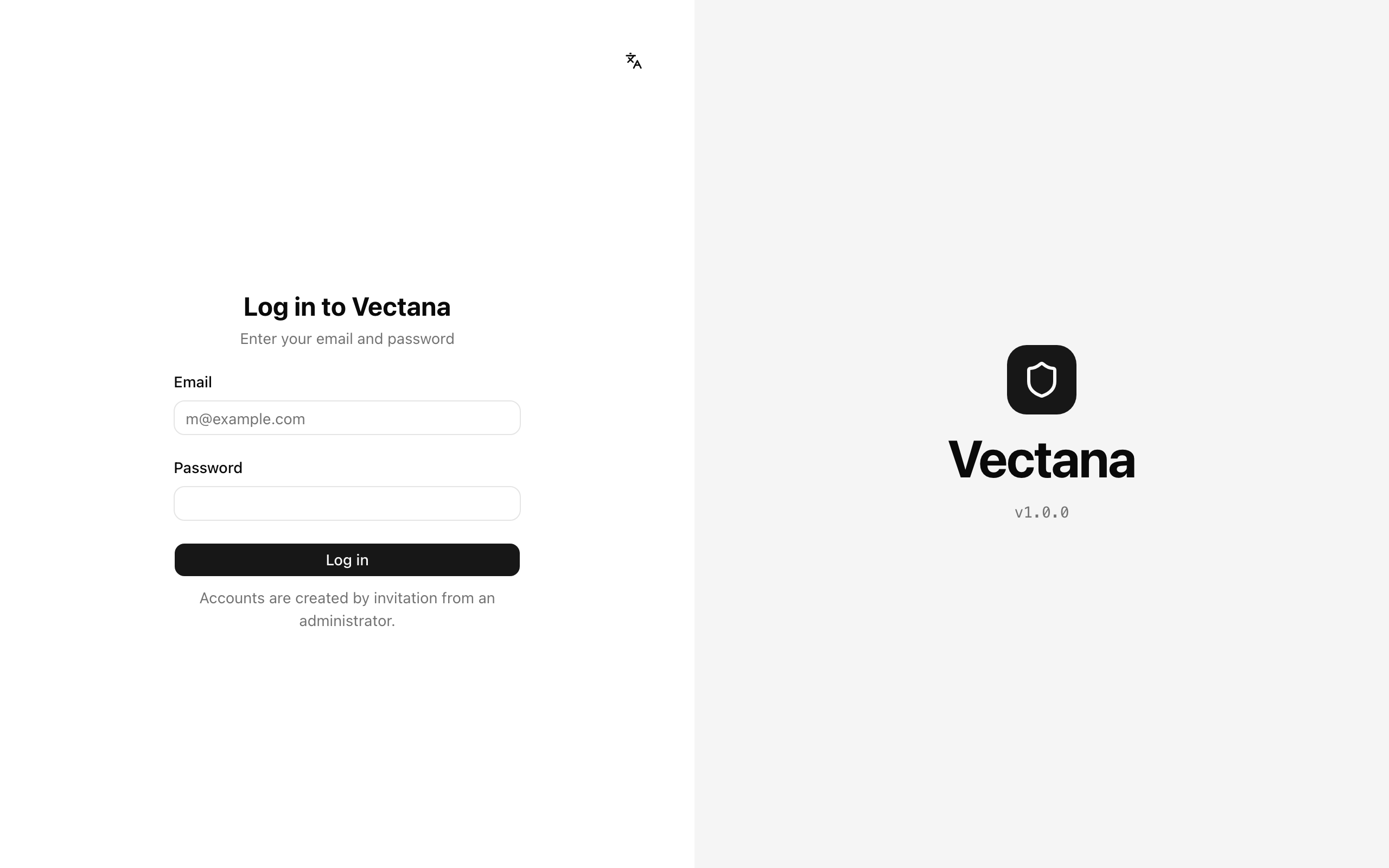
Log in with your email address and password. You stay logged in for up to 7 days.
Layout
After logging in, the sidebar is on the left.
| Area | What it shows |
|---|---|
| Menu | Dashboard, Projects, Vulnerabilities, EOL, and Organization (administrators only) |
| Projects | The projects you can see. The dot shows their state (red: critical, orange: needs attention, green: fine) and the number shows open items |
| Your name (bottom left) | Settings, language, theme, log out, and the version |
Use the button at the top of the page to collapse the sidebar to icons.
Change the language
The app is available in Japanese and English. Switch from “Language” in the user menu at the bottom left (or the button at the top right of the login page).
Your choice is saved to your account, and emails from Vectana use the same language.
Personal settings
Open “Settings” from the user menu at the bottom left to change:
- Language: for the app and your emails
- Email notifications: whether to receive them and the minimum severity (see Notifications)
- Password: enter your current password and a new one (at least 8 characters)